Open your account
You can open an account in about five minutes, with 30 days of the full plan and no card. Every account is checked, so your evidence file later carries a company that really exists.
- Go to monitor.soundchecksoftware.eu and click Start free trial.
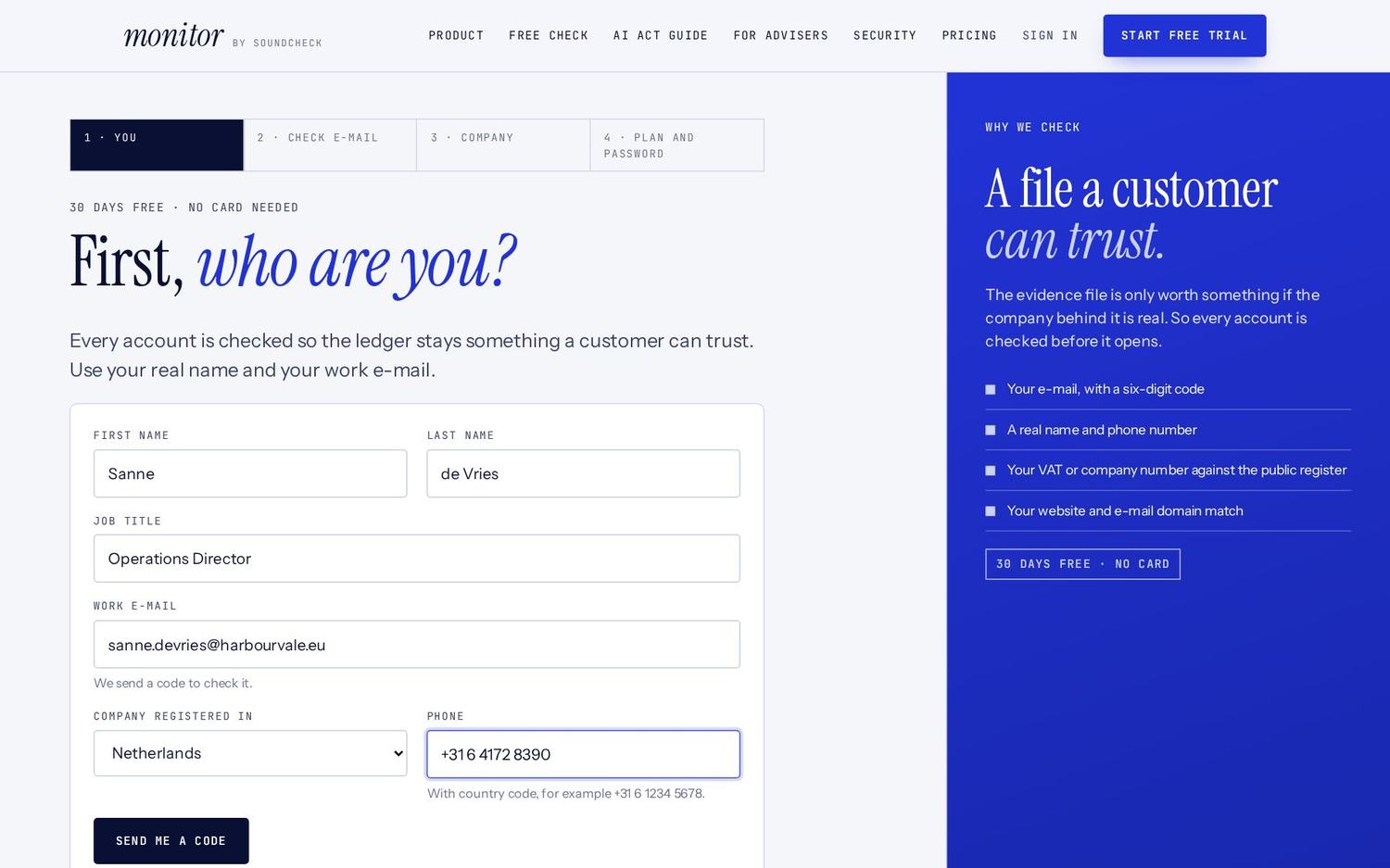
- You. Enter your first and last name, job title, work e-mail, the country where your company is registered, and your phone number with country code (for example +31 6 4172 8390). Click Send me a code.
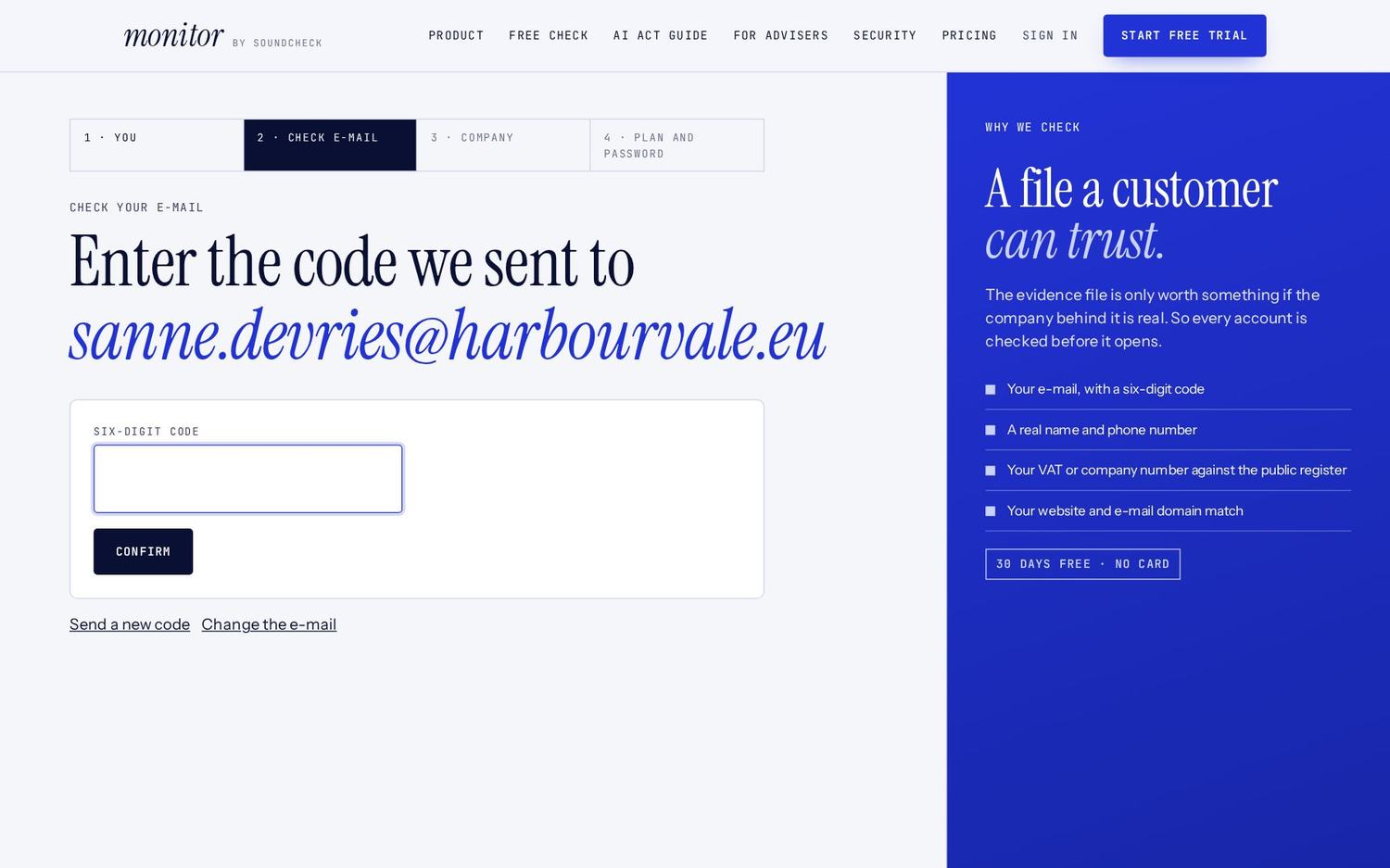
- Check e-mail. Open the e-mail from The Monitor and type the six-digit code. It works for 10 minutes. No e-mail? Look in your spam folder, or click Send a new code. Typed the wrong address? Click Change the e-mail.
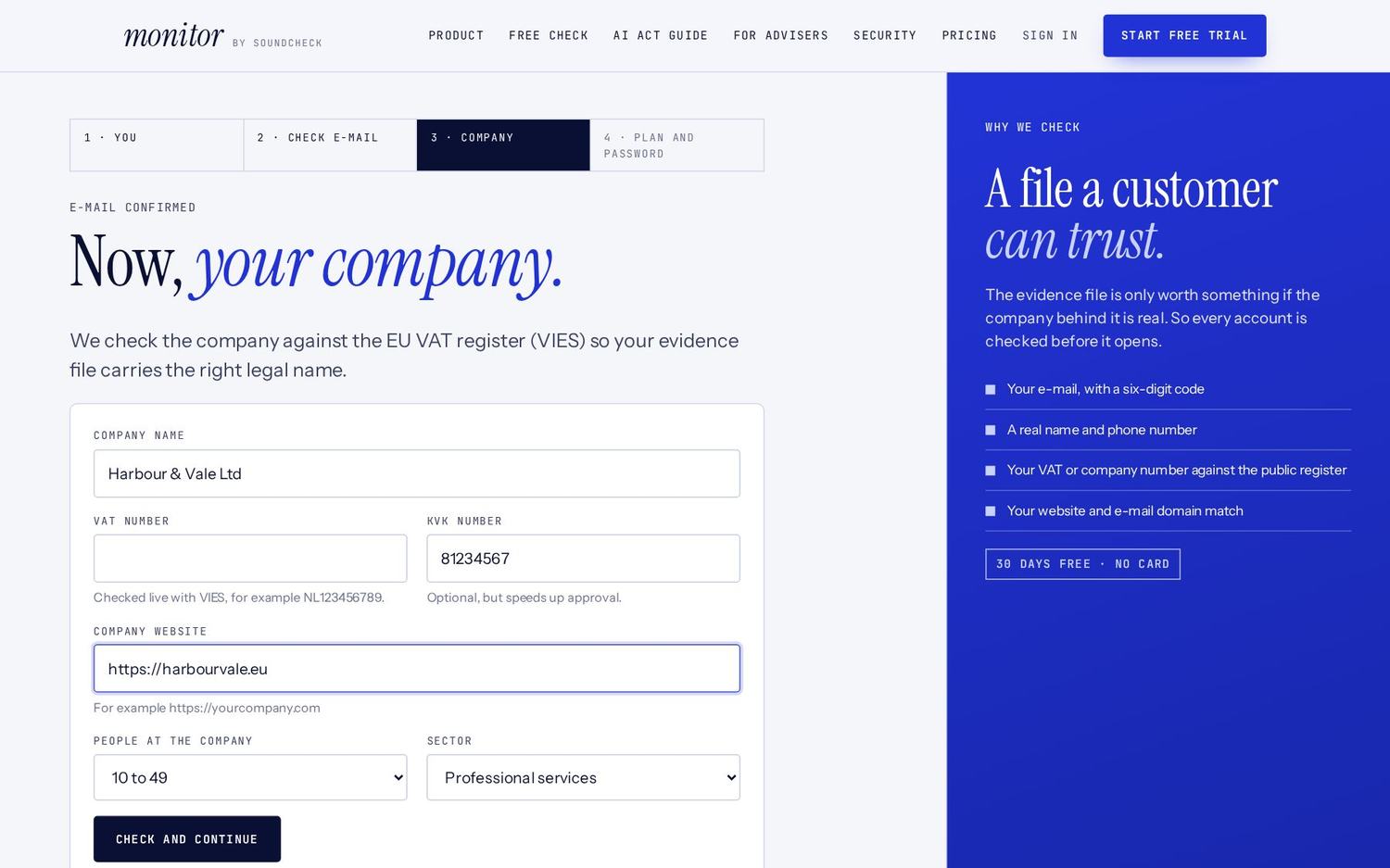
- Company. Enter the company name and, if you have them, the VAT number and the registration number (KvK in the Netherlands, Companies House in the UK). Add your website, the number of people at the company and your sector. Click Check and continue.
- Plan and password. You now see what was checked, including the registered name we found. Pick a plan to try, enter a voucher code if you have one, and choose a password of at least 10 characters with letters and a number. Accept the terms and click Open my ledger.

If a person needs to look. Most accounts open straight away. If something needs a second look, you see the message "A person is checking your details". This usually takes less than one working day, and you get an e-mail when your account is ready.
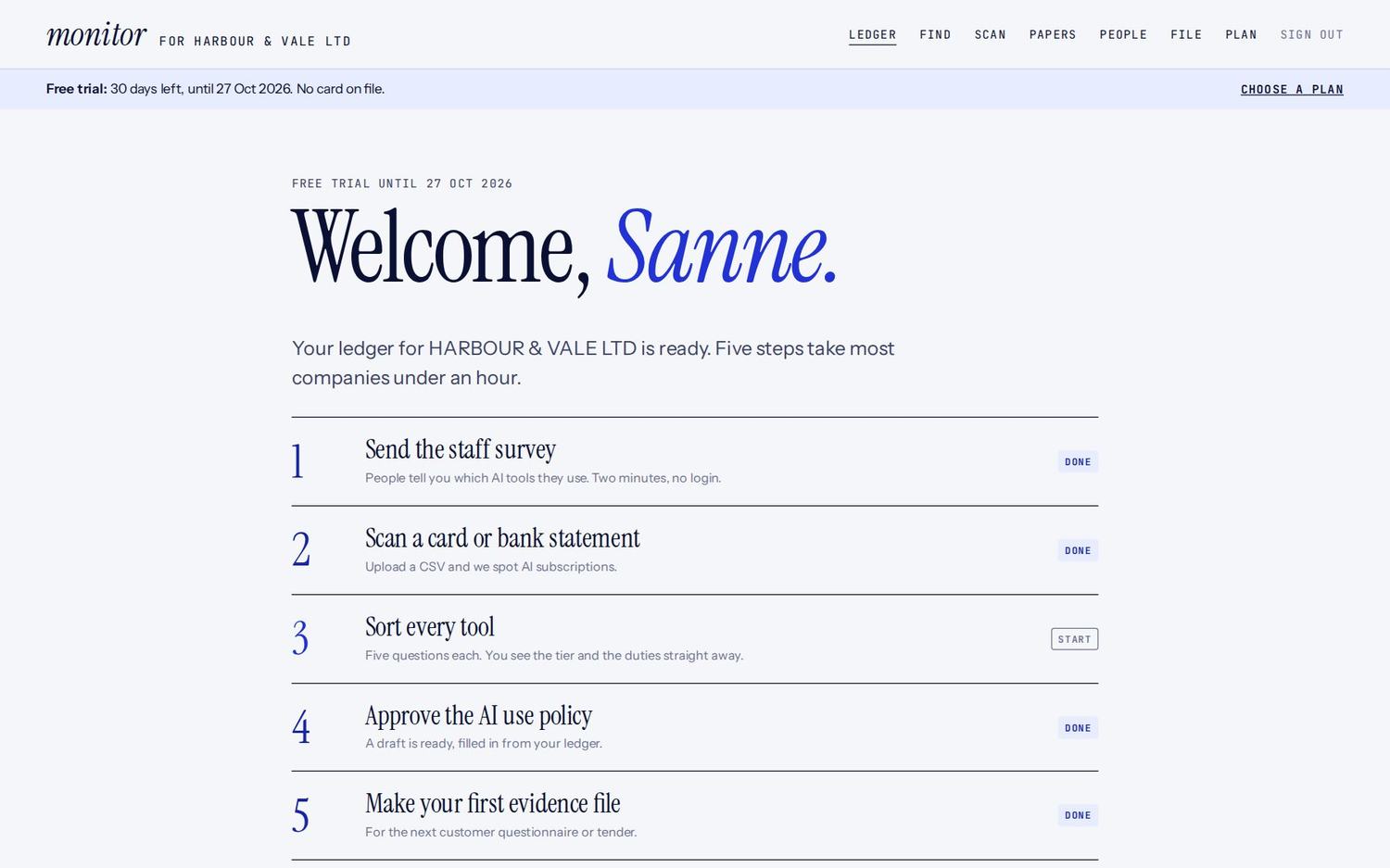
The welcome page. Your first screen lists five steps with a Start or Done stamp: send the staff survey, scan a card or bank statement, sort every tool, approve the AI use policy and make your first evidence file. Click any step to begin. Most companies finish all five in under an hour.
Signing in
Signing in takes your password plus a code by e-mail, so nobody can open your ledger with a password alone.
- Click Sign in at the top of the website.
- Enter your work e-mail and password, then click Continue.
- Enter the six-digit code from the e-mail. It works for 10 minutes.
- On your own computer, tick Trust this device for 30 days. You then skip the code on that computer for 30 days. Do not tick it on a shared computer.

Forgot your password? Click Forgot your password? on the sign-in page, enter your e-mail, and follow the code to choose a new one.
Code not accepted? After 5 wrong tries a code stops working. Ask for a new one. If codes never arrive, check your spam folder and ask your IT team to allow e-mail from monitor@soundchecksoftware.eu.
Signing out. Click Sign out at the right of the menu.
Finding your way around
The menu at the top of every page has seven items. On a phone, tap Menu to open it.

| Menu | What you do there |
|---|---|
| Ledger | Your home page: every AI tool, its risk tier, its duties and the AI Act timeline |
| Find | Find AI tools with the staff survey, a card statement or the library |
| Scan | Find AI on computers and the network with Monitor Scan |
| Papers | Write and approve policies and other documents |
| People | Invite colleagues and set who can do what |
| File | Make evidence files and see the activity trail |
| Plan | Your plan, payments, vouchers and adviser review |
The name after monitor at the top left is the company you are working on. If you work for more than one company, such as an accountant or consultant, it is a drop-down list: choose another company to switch.
A coloured bar under the menu shows your account status: days left in your trial, a payment that is due, or that the ledger is read-only.
Find your AI tools
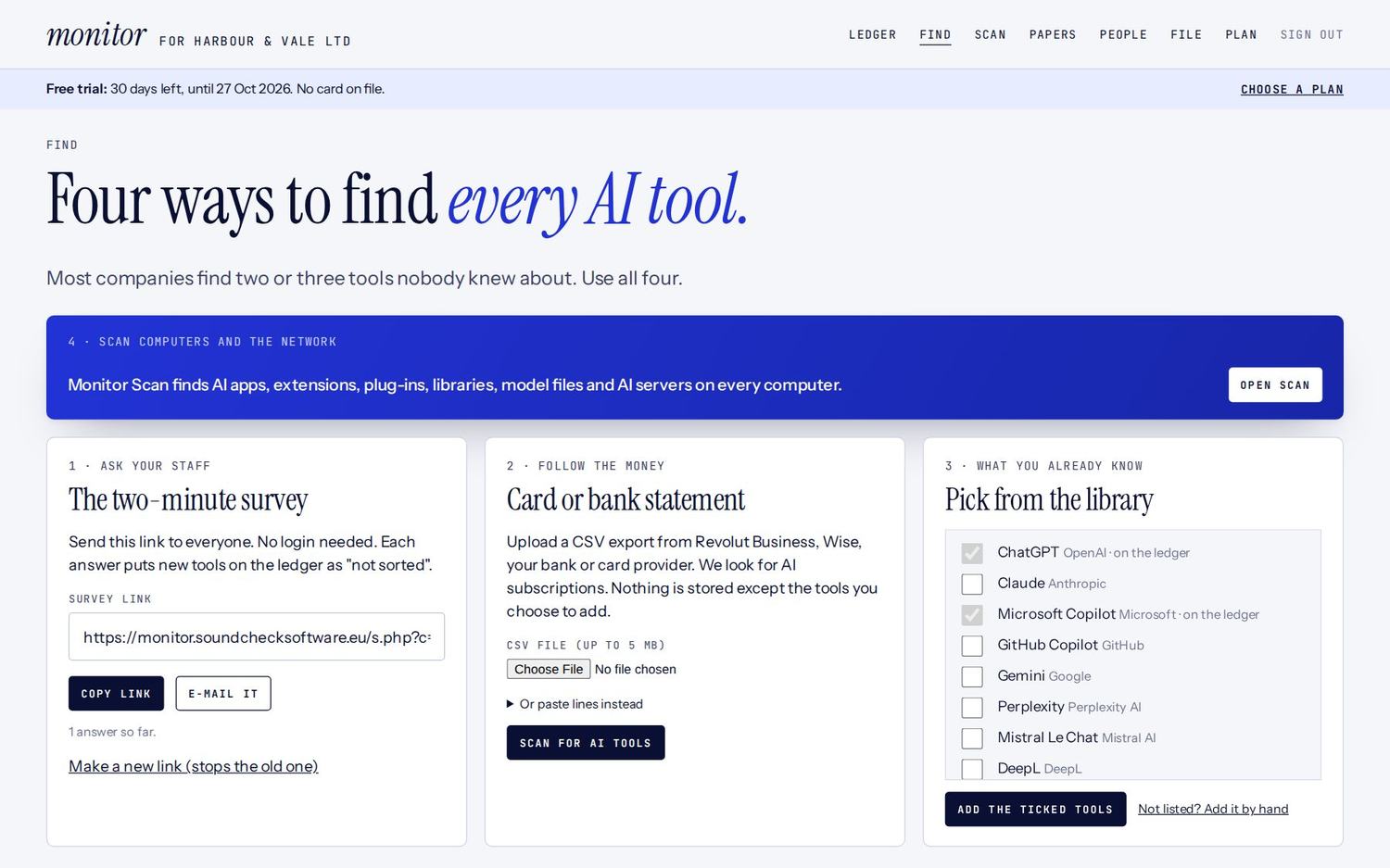
The ledger is only useful if it is complete, so use every way of finding tools. Most companies find two or three that nobody knew about. Open Find in the menu.
Ask your staff with the survey
- On the Find page, copy the survey link under 1 · Ask your staff, or click E-mail it to open a ready-made e-mail.
- Send it to everyone. Nobody needs an account or a password.
- Staff tick the tools they use, type any others, and can give their name and team. They can also tick I use no AI tools at work.
- Every tool they name appears on your ledger as Not sorted. You see the answers at the bottom of the Find page.
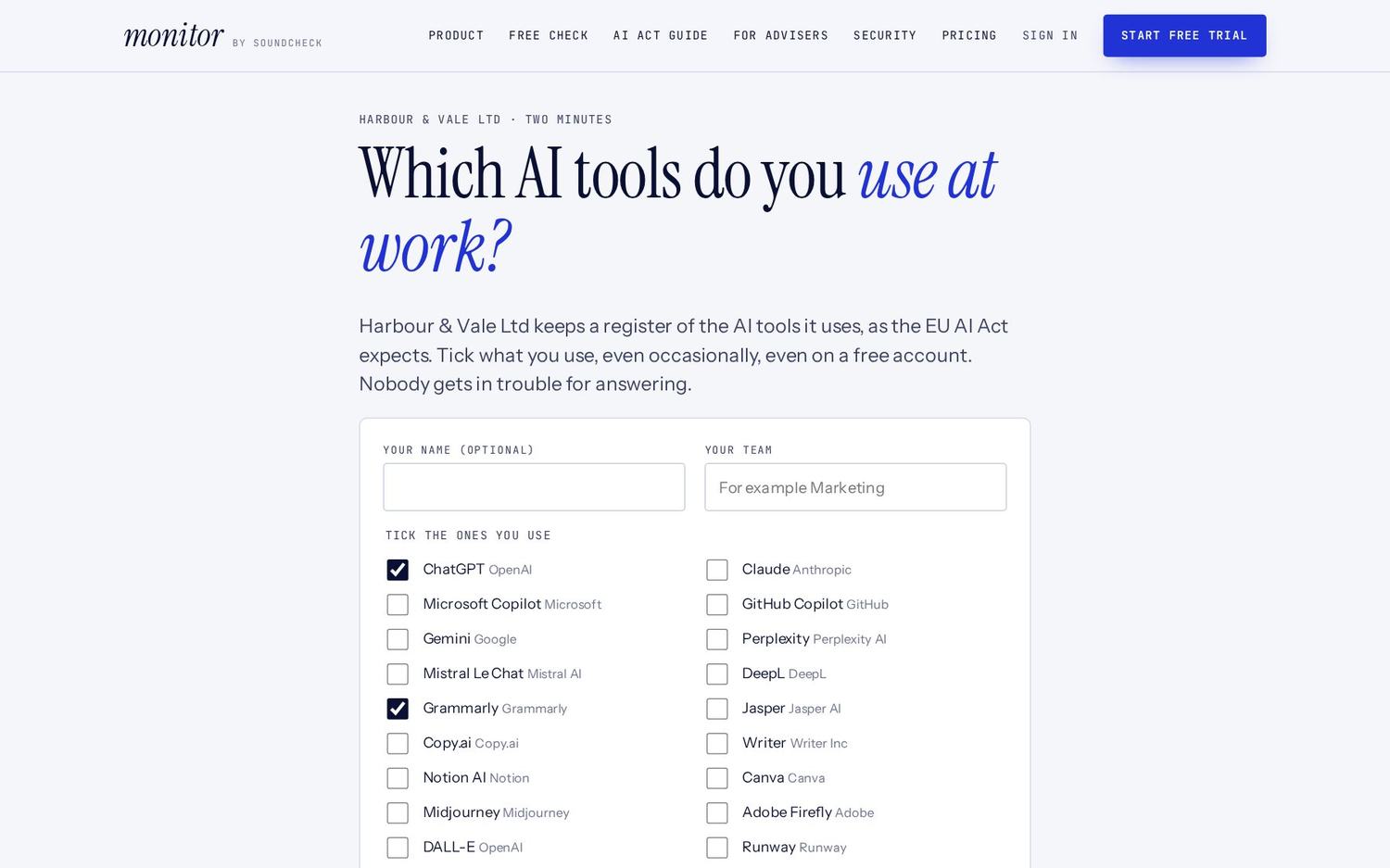
Once your AI use policy is approved (step 4), the same link also lets staff read and sign the policy with their name and work e-mail. If the link was shared too widely, click Make a new link; the old one stops working.
Follow the money with a card or bank statement
- Export a statement as CSV from Revolut Business, Wise, your bank or card provider. Up to 5 MB.
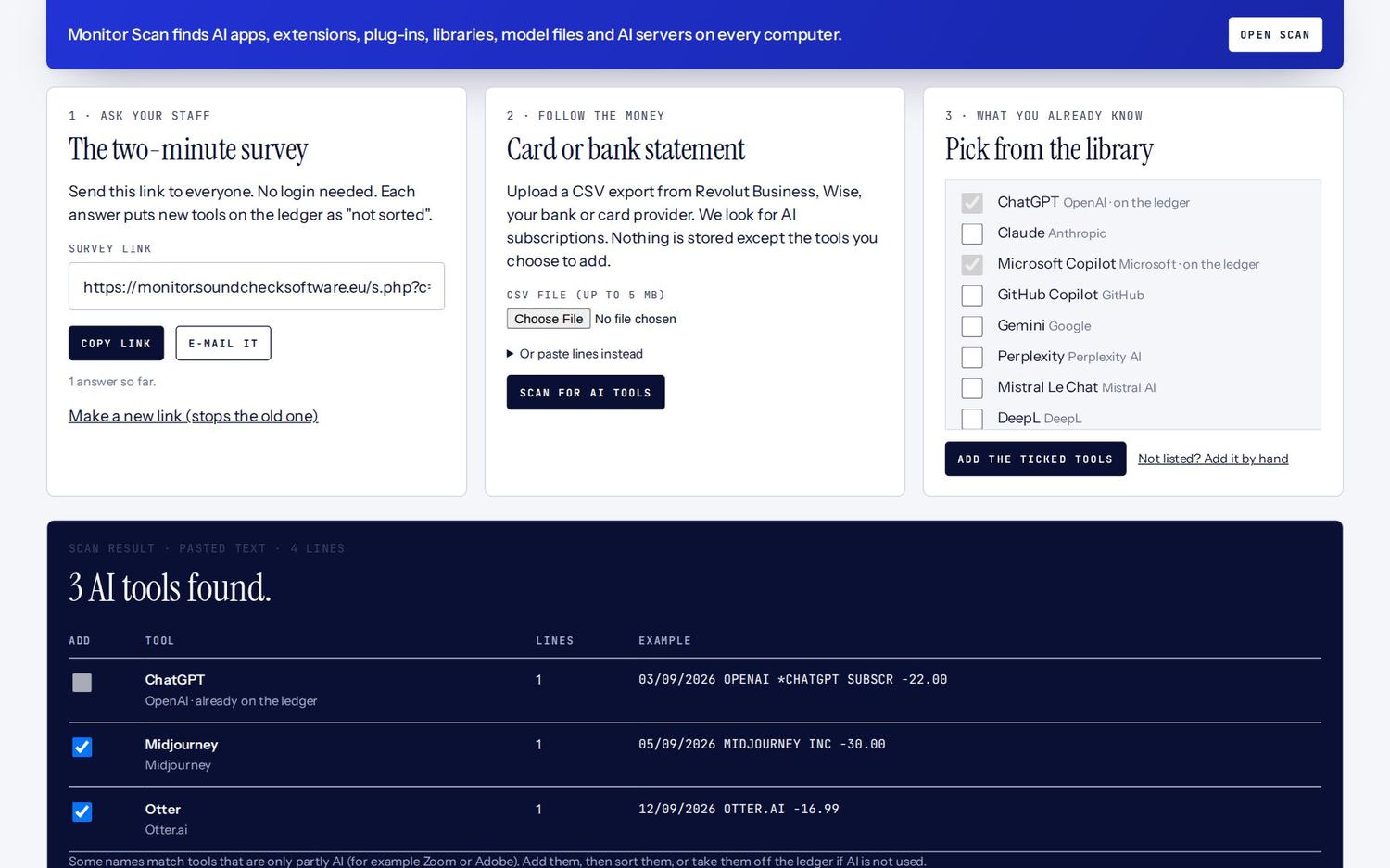
- Under 2 · Follow the money, choose the file and click Scan for AI tools. You can also paste lines instead.
- You see the AI subscriptions found, with an example line for each. Untick any you do not want, then click Add the ticked tools.
Pick from the library
Under 3 · What you already know, tick the tools you know are in use and click Add the ticked tools. Tools already on your ledger are ticked and greyed out.
Add a tool by hand
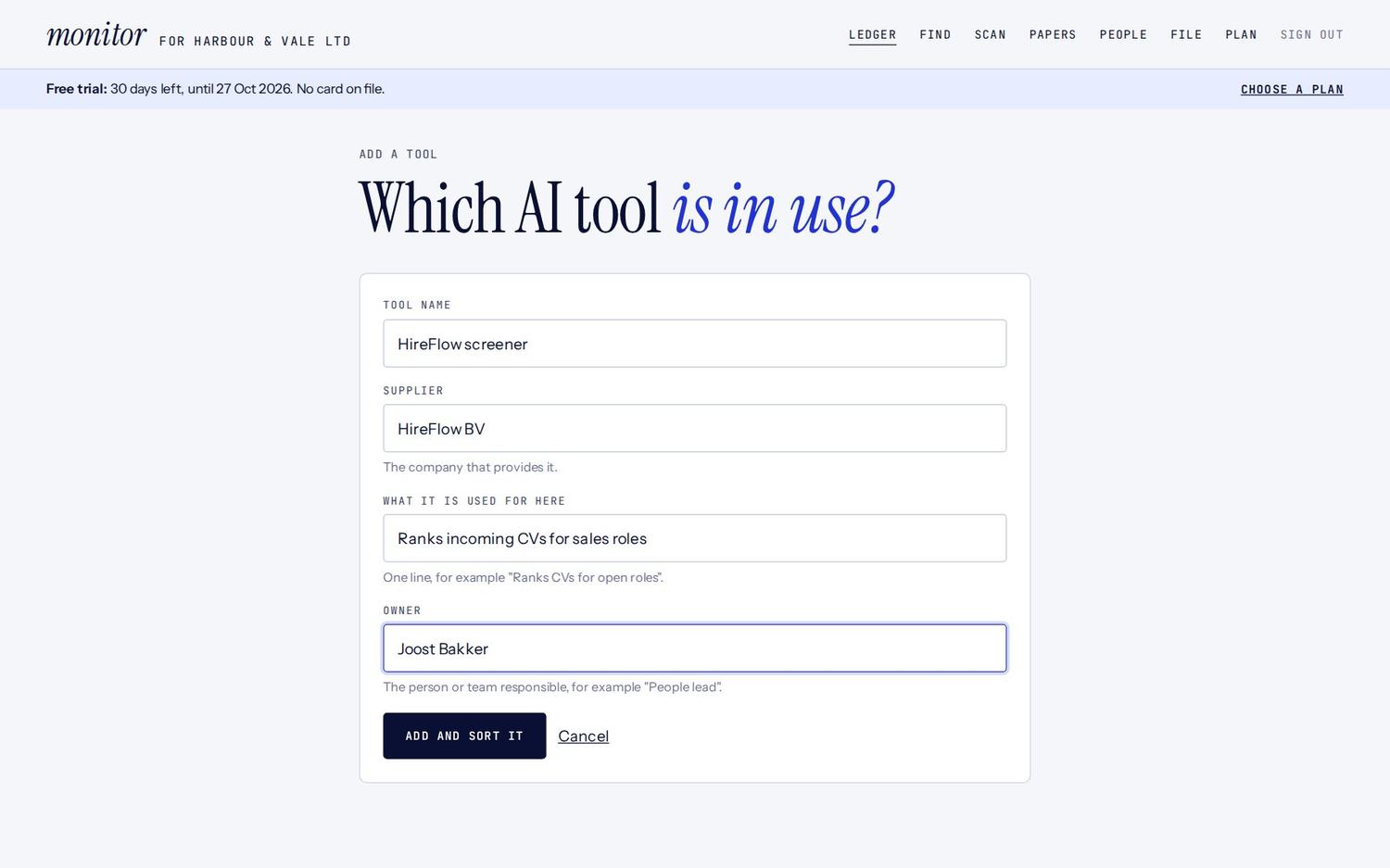
Click Not listed? Add it by hand on the Find page, or Add a tool on the ledger. Fill in:
- Tool name, for example "HireFlow screener"
- Supplier, the company that makes it
- What it is used for here, in a few words
- Owner, the person responsible for it in your company
Then click Add and sort it to go straight on to the five questions.
If one tool is used for very different things, for example ChatGPT for writing and for screening CVs, add each use as its own line. Each use is sorted separately.
Plan limits. Some plans hold a maximum number of tools. The Find page tells you how many you have and how many your plan allows.
Monitor Scan
Monitor Scan finds the AI that people forget to mention: apps, browser extensions, editor plug-ins, code libraries, AI model files, AI websites and AI servers on your network. It takes about a minute per computer and is included in every plan. Open Scan in the menu.

Before you scan: tell your staff
Scan one computer
The Scan page opens on the right tab for your computer. Choose one of these.
Windows
- Click Download for Windows. Your company's key is already built into the program.
- Double-click MonitorScan.exe. If Windows says the publisher is unknown, click More info, then Run anyway.
- For a full scan of every user on the computer, right-click it and choose Run as administrator.
Or copy the PowerShell line from the Windows tab, paste it into PowerShell and press Enter.

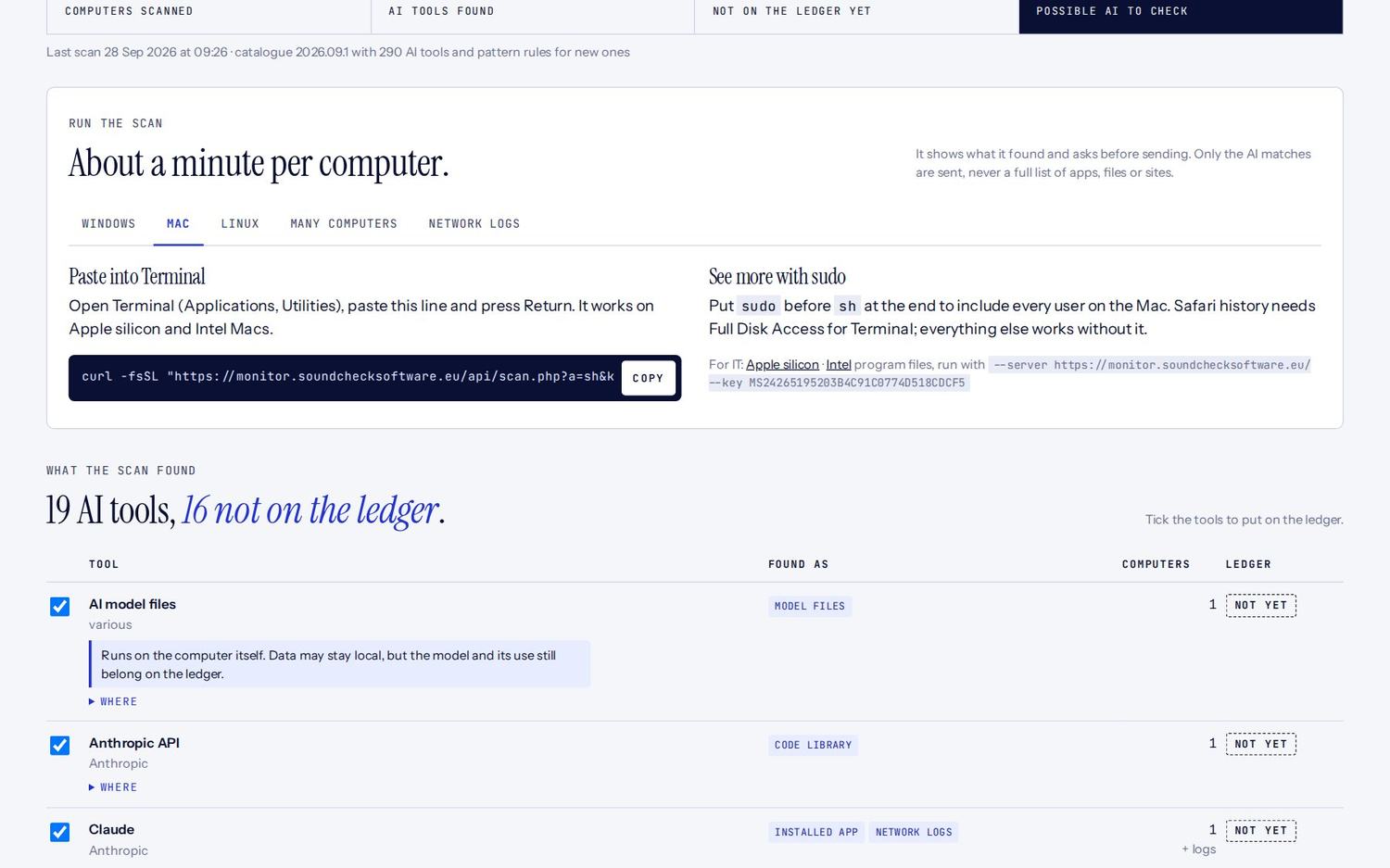
Mac
- Open Terminal (Applications, then Utilities).
- On the Mac tab, click Copy, paste the line into Terminal and press Return.
- To include every user on the Mac, put
sudobeforeshat the end of the line and enter your Mac password.
Linux
Copy the line from the Linux tab into a terminal, or click Download for Linux, make the file executable and run it.
What you see while it runs
The program checks each area in turn and says done. Then it lists what it found, marked ● for a known AI tool from our catalogue of about 290 tools, and ○ for something that looks like AI but is not in the catalogue yet.
monitor · AI scan v1.0.0 Company: Harbour & Vale Ltd Catalogue: 2026.09.1 Installed apps done Browser extensions done AI model files done AI servers on the local network done Found 6 AI tools and 1 possible AI tool to check.●ChatGPT app Microsoft Store app●Microsoft Copilot app Microsoft 365 Copilot●Grammarly extension Chrome●Fireflies web app.fireflies.ai●DeepSeek web chat.deepseek.com●Ollama network 192.168.1.40:11434○Recruit Assist AI extension looks like AI Send these 7 results to The Monitor? [Y/n]
It then asks Send these results to The Monitor? [Y/n]. Press Enter to send, or type n to send nothing. Only the matches on screen are sent. It installs nothing and removes itself when it is done.
Scan every computer at once
The Many computers tab is for your IT team or IT supplier. It has ready-made commands for Intune, Group Policy, Jamf and similar tools, plus a weekly schedule, so new AI tools show up by themselves. --yes sends without asking and --quiet prints nothing.
The same tab shows your scan key. It can only send results and read the catalogue; it cannot read your ledger. If it has been shared too widely, the owner can click Make a new key. Old downloads and commands then stop working.

Add network logs
Network logs catch AI use on devices you cannot install on, such as phones.
- Export a week of logs from your router, firewall, DNS filter or proxy, for example Pi-hole, NextDNS, Cisco Umbrella, Fortinet, Sophos, Windows DNS Server, Squid or Zscaler. Any text or CSV format works, and .gz files are fine.
- On the Network logs tab, choose up to 10 files of up to 50 MB each, or paste lines.
- Click Read the logs. You see how many lines were read and how many AI services were found.
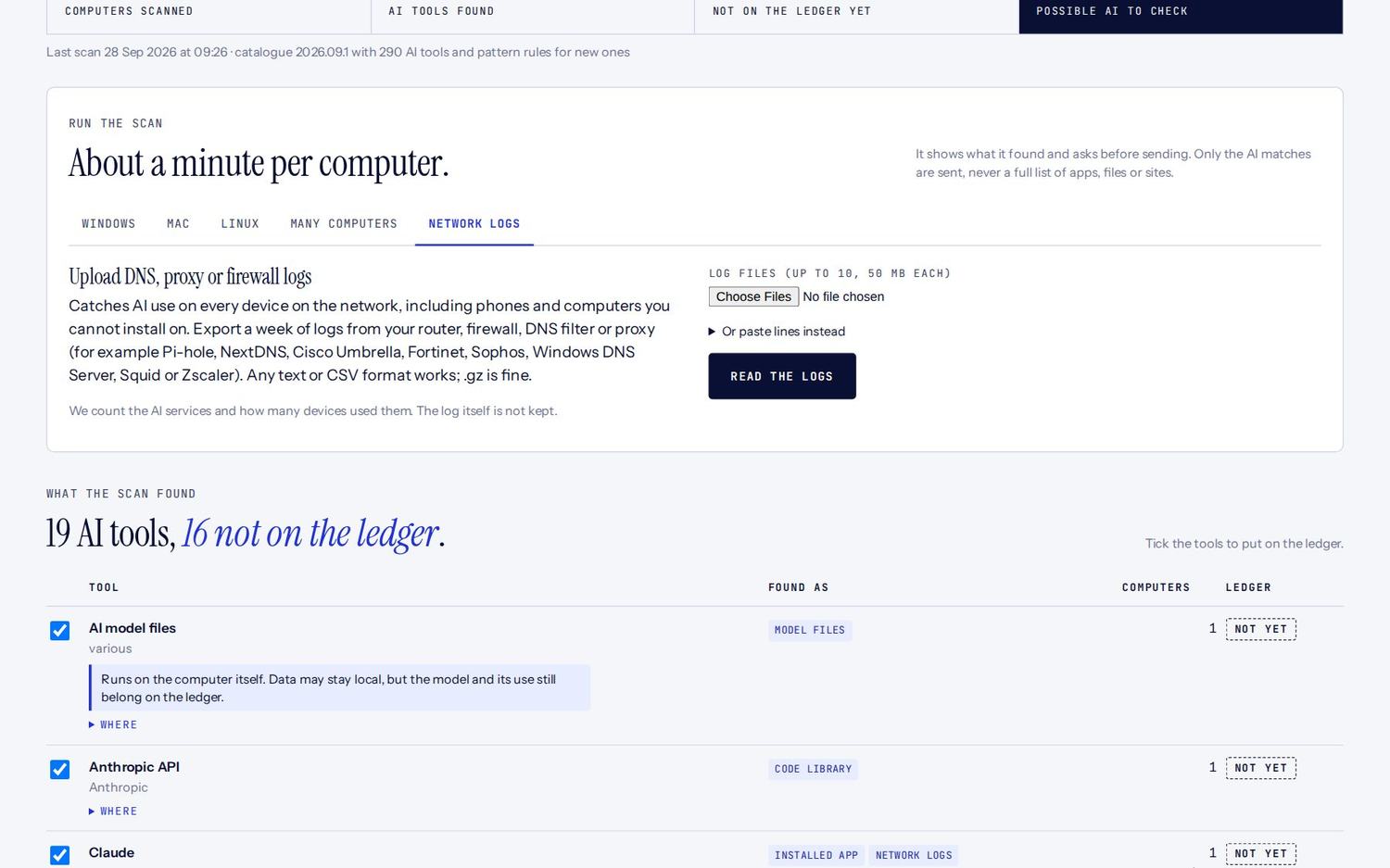
We count the AI services and how many devices used them. The log itself is not kept.
Read the results
The four numbers at the top show computers scanned, AI tools found, tools not on the ledger yet, and possible AI to check. What the scan found lists one row per tool:

- Found as shows where it was seen, for example installed app, browser extension or web use.
- Computers shows on how many computers. "+ logs" means it was also in a network log.
- Where opens the details: which computer and exactly what was found.
- A blue note explains special cases: a provider based in China, a tool that runs on the computer itself, or face or emotion recognition, which can be banned.
- Partly AI means the product also does other things, such as Zoom or Canva. Check whether its AI features are used. These start unticked.

Tick the tools you want and click Add the ticked tools to the ledger. They arrive as Not sorted, ready for step 2.
Possible AI · check these lists tools found by pattern. Click Add for real AI tools or Not AI to hide one. Show the hidden results again brings them back.

Computers, logs and settings
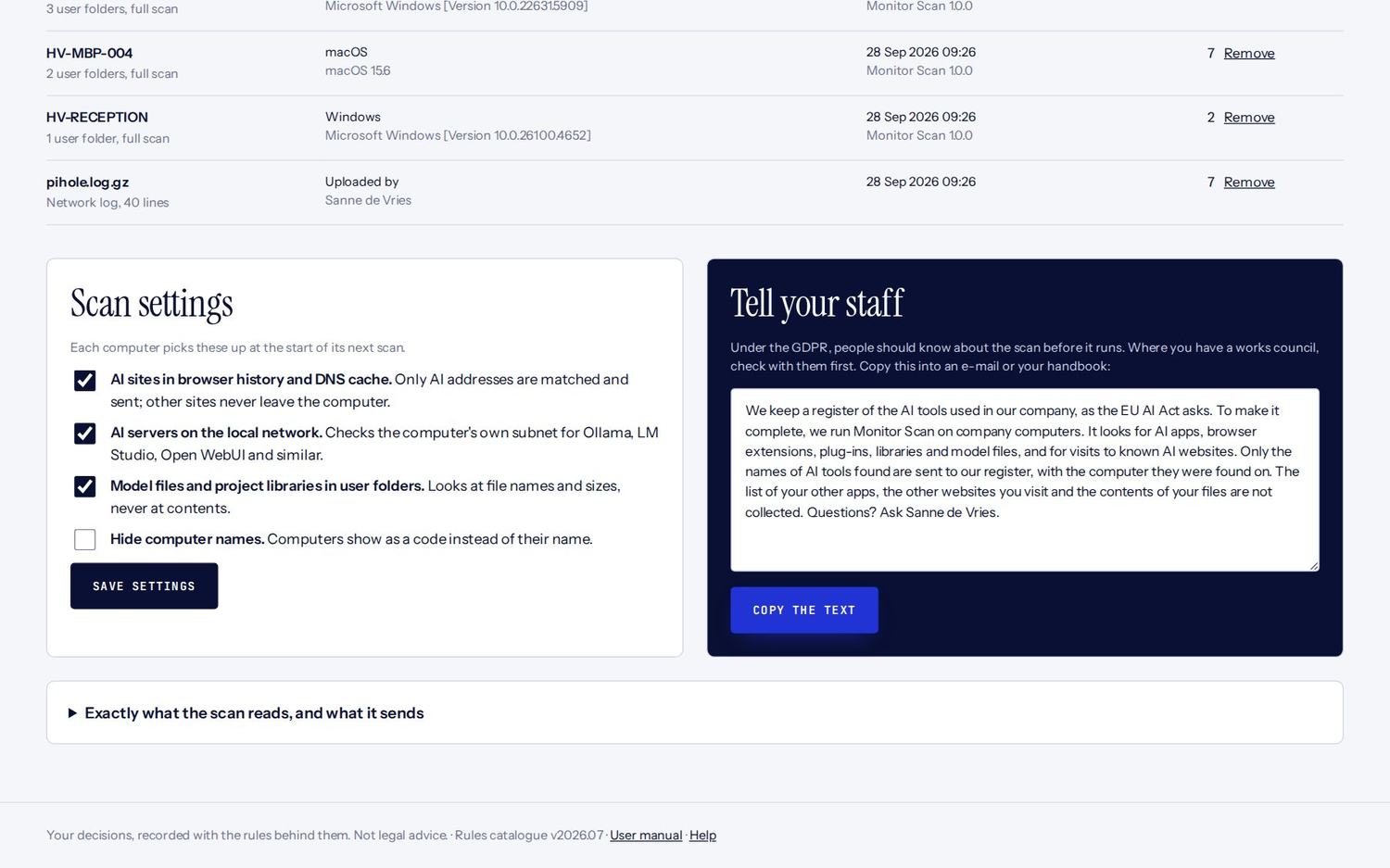
Computers and logs lists every computer with its system, last scan and number of results. "Full scan" means it ran as administrator. Click Remove to delete a computer or log and its results. Scanning a computer again replaces its old results.
Scan settings apply from each computer's next scan:
- AI sites in browser history and DNS cache. Only AI addresses are matched and sent.
- AI servers on the local network. Checks the computer's own network for Ollama, LM Studio and similar.
- Model files and project libraries in user folders. Looks at file names and sizes, never contents.
- Hide computer names. Computers show as a code instead of their name.
On the free plan you can scan up to 3 computers. Every scan also appears in your evidence file, as proof that the ledger was checked.
Sort each tool
Each tool is placed in a risk tier by answering five plain questions. A fixed rules catalogue decides the tier, not AI, and the same answers always give the same result.
How to sort a tool
- On the Ledger, click a tool marked Not sorted, then click Sort this tool.

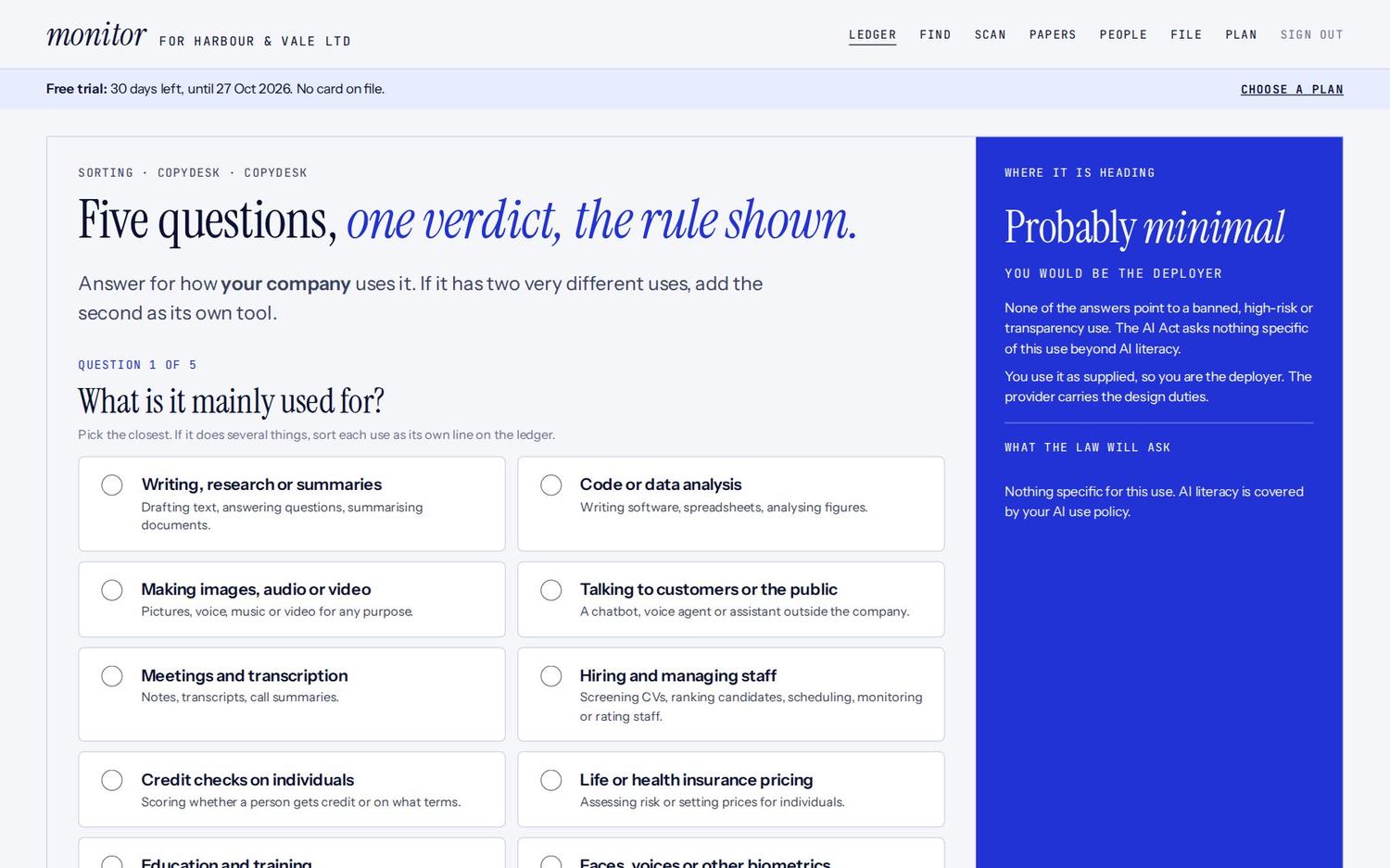
- Answer the five questions. The blue panel shows where the tool is heading and what the law will ask, before anything is saved.

- Open Could it be doing something that is banned? only if it might apply. Most tools: no.
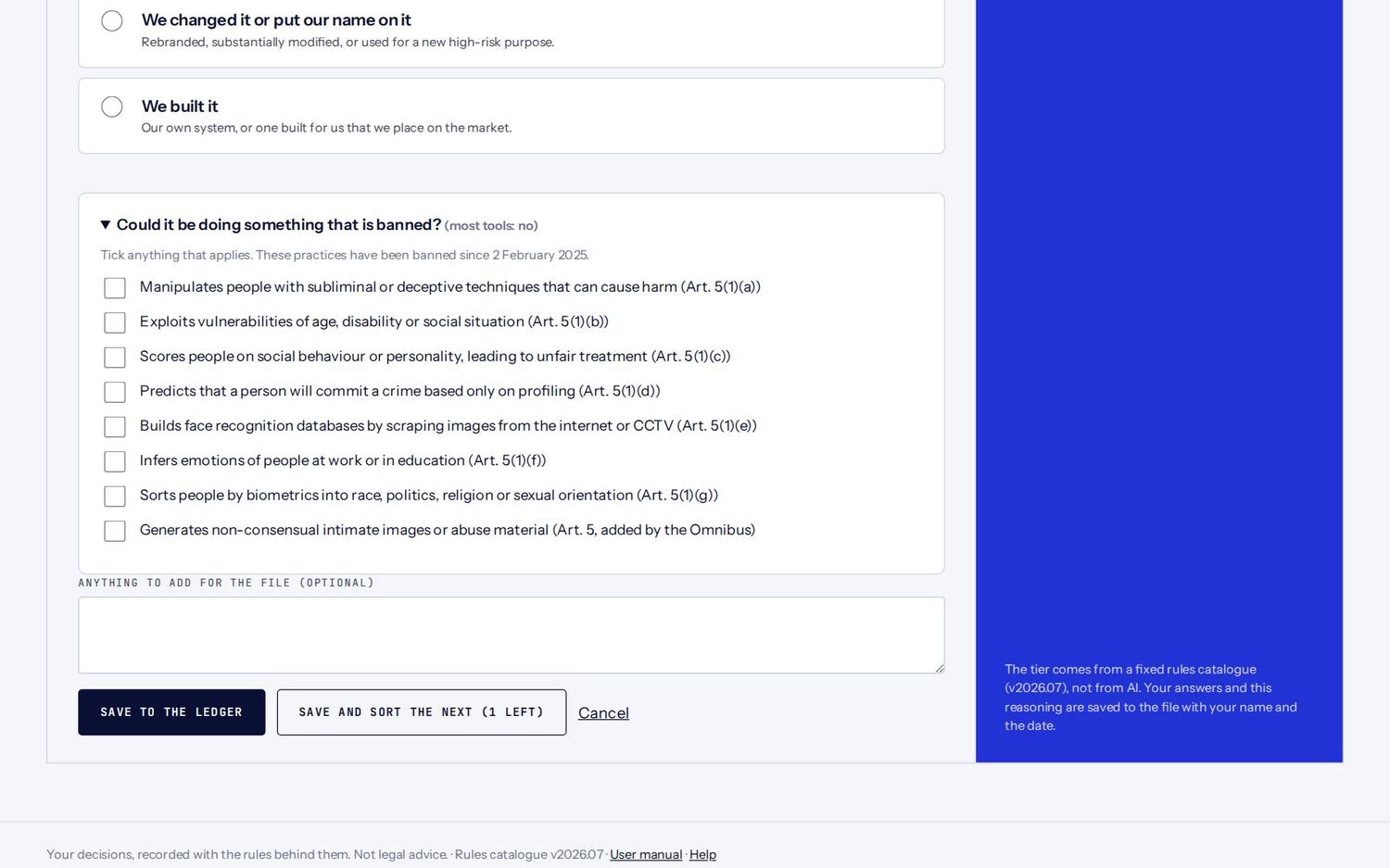
- Click Save to the ledger, or Save and sort the next to go straight on to the next unsorted tool.
The person who answers should know how the tool is really used, usually its owner.
The five questions
- What is it mainly used for? Writing, code, images or video, customer chat, meetings, hiring and staff, credit checks, insurance pricing, education, biometrics, or something else. If a tool does several things, add each use as its own line.
- Who deals with it directly? Only your own staff, or customers, candidates and the public.
- Does anything it produces feed a decision about a person? This is the question that decides the most: hiring, promotion, credit, insurance, a school place or a benefit. Not sure? Choose Not sure; it is flagged for an adviser rather than guessed.
- Who sees what it makes? Only you, published text checked by a person, published text not checked, or realistic images, audio or video.
- Did you build it or change it? Used as supplied, changed or rebranded, or built by you.
What the tiers mean
| Tier | What it means | Typical example |
|---|---|---|
| Prohibited | A banned practice since 2 February 2025. Stop using it. | Reading emotions of staff |
| High-risk | Substantial duties from 2 December 2027: oversight, logs, informing staff, and more | CV screening, credit scoring of people |
| Needs review | Could be high-risk. An adviser should confirm. | A tool that feeds decisions about customers |
| Transparency | People must be told they deal with AI, or AI content must be labelled, since 2 August 2026 | A website chatbot, AI images that look real |
| Minimal | No specific AI Act duties beyond AI literacy | Drafting e-mails, summarising documents |
| Not sorted | Waiting for its five questions | A tool just found |
Your role: deployer or provider
Most companies are the deployer: they use a tool as supplied, and the maker, the provider, carries the design duties. If you built a system, put your name on it, or changed it substantially or for a new high-risk purpose, you may become the provider, with heavier duties. The file for each tool says which you are.
You can sort a tool again at any time, for example when its use changes. The old decision stays in the activity trail.
The ledger, dates and duties
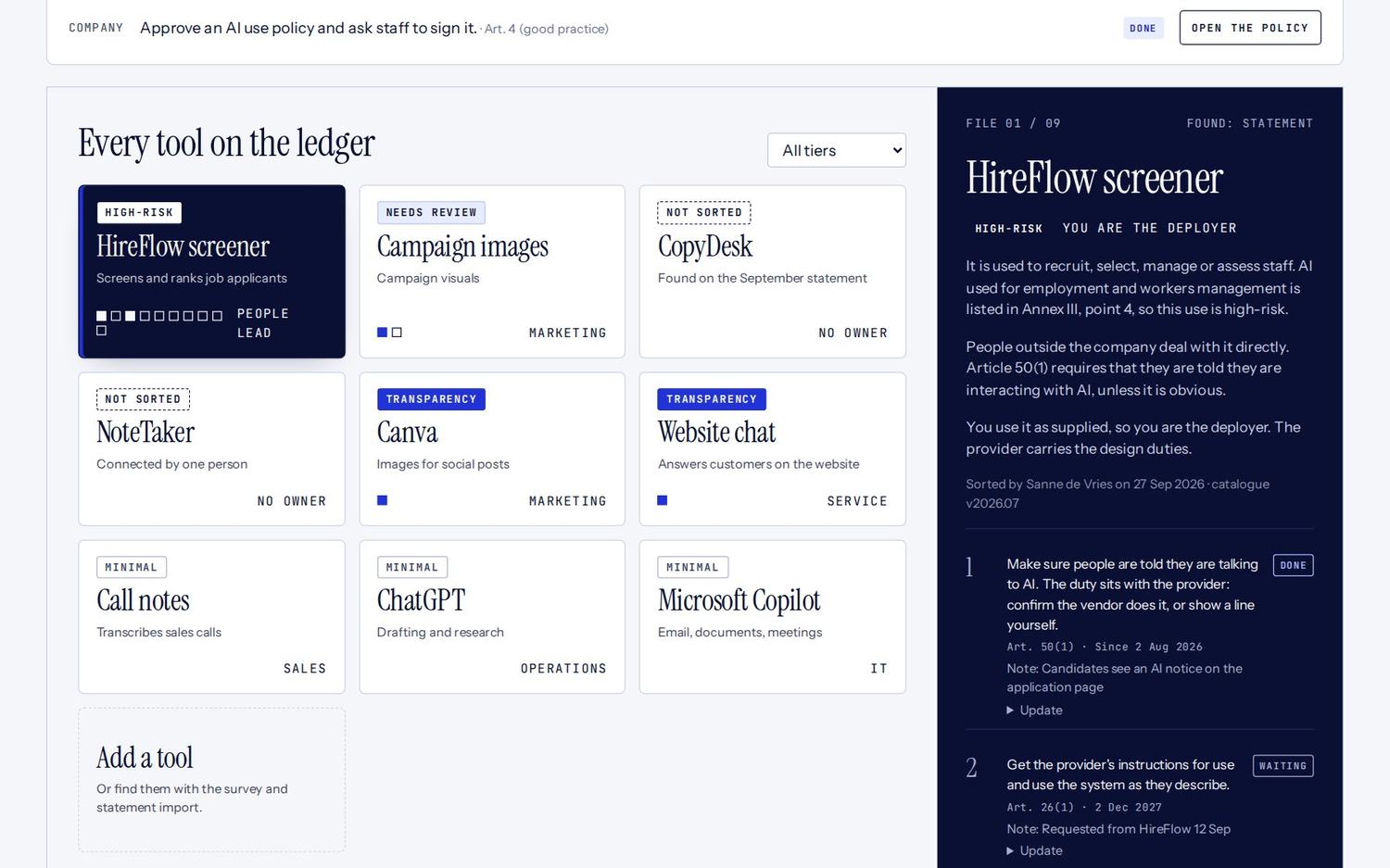
The Ledger is your home page. One look tells you where you stand: what is late, what is next and which tools matter.

The top of the page
- The headline says in words how many tools you have and how many duties are late.
- Three numbers: tools that are high-risk or need review, tools not yet sorted, and the days until the next AI Act date that touches you.
- The timeline shows the AI Act dates from February 2025 to August 2028, with a line for today. Click a date to see only the tools and duties it concerns. Click Show all to clear it.
- Filter by tier shows only one tier, for example all high-risk tools.
Colour means something: navy is high-risk, blue is transparency and late, pale blue is to review.
A tool's file
Click any tool to open its file on the right. The file shows:
- The tier and your role, and who sorted it, when, and under which catalogue version.
- The reasoning in plain words, with the rule and article it relied on.
- The duties, each with its article, its date and a status.
Keeping duties up to date
For each duty, pick a status, add a note if useful, and click Save.
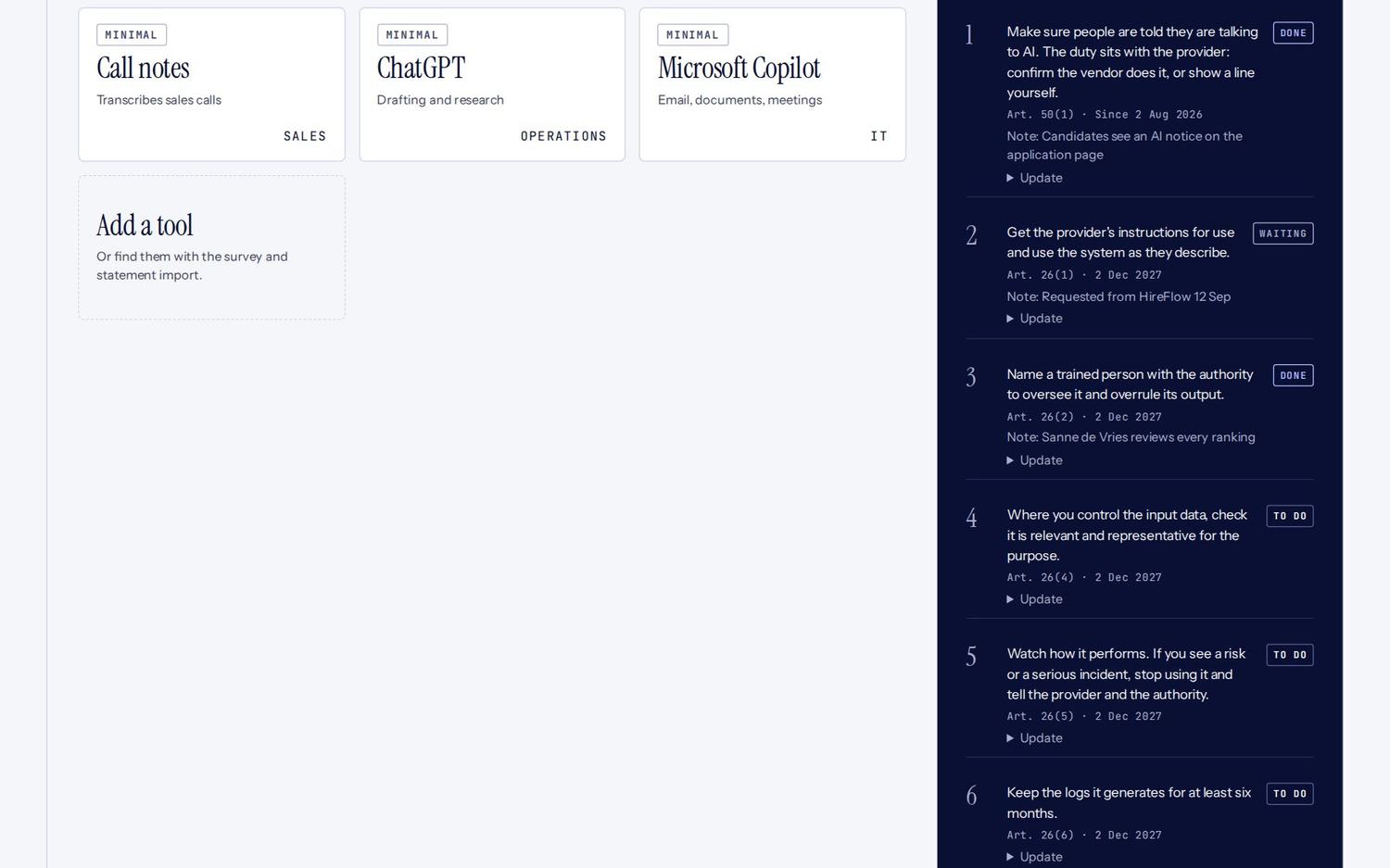
| Status | Use it when |
|---|---|
| To do | Nothing has been done yet |
| Waiting | You are waiting on someone, such as the supplier |
| In review | The work is done and someone is checking it |
| Done | Finished. Use the note to say where the proof is. |
| Not needed | It does not apply, with the reason in the note |
| Late | Set automatically when a duty is still to do after its date |
Some duties belong to the whole company rather than one tool, such as AI literacy for staff. They are covered by your AI use policy (step 4).
Changing or removing a tool
- Edit details changes the name, supplier, use or owner.
- Sort again repeats the five questions when the use has changed.
- Take it off the ledger is for a tool you no longer use, or one that turned out not to be AI. Give a reason; the record stays in the activity trail.
Reminders. 30 days before an AI Act date that touches your tools, you get an e-mail listing the open duties.
Papers
The Monitor drafts the documents the AI Act expects, filled in from your own ledger. You check them, change what you need, and a named person approves them. Open Papers in the menu.

The eight papers
The Papers page shows which ones your ledger needs. The first three apply to everyone; the others appear when a tool calls for them.
| Paper | What it is for | Needed when |
|---|---|---|
| AI use policy | The rules staff follow when they use AI at work | Always |
| Notice to staff | A short e-mail telling staff the register exists | Always |
| Supplier questionnaire | Questions for each AI supplier about their instructions and documents | Always |
| Chatbot disclosure line | The words shown when someone starts talking to your AI assistant | You have a chatbot for the public |
| Labelling AI content | When and how you mark AI images, audio, video and text | You have transparency duties |
| Human oversight plan | Who watches each high-risk tool and can overrule it | You have a high-risk tool |
| Worker information letter | The letter to staff before AI is used in decisions about them | AI is used in decisions about staff |
| Fundamental rights impact assessment | The outline for the assessment before credit or insurance decisions | AI is used for credit or insurance |
Write and approve a paper
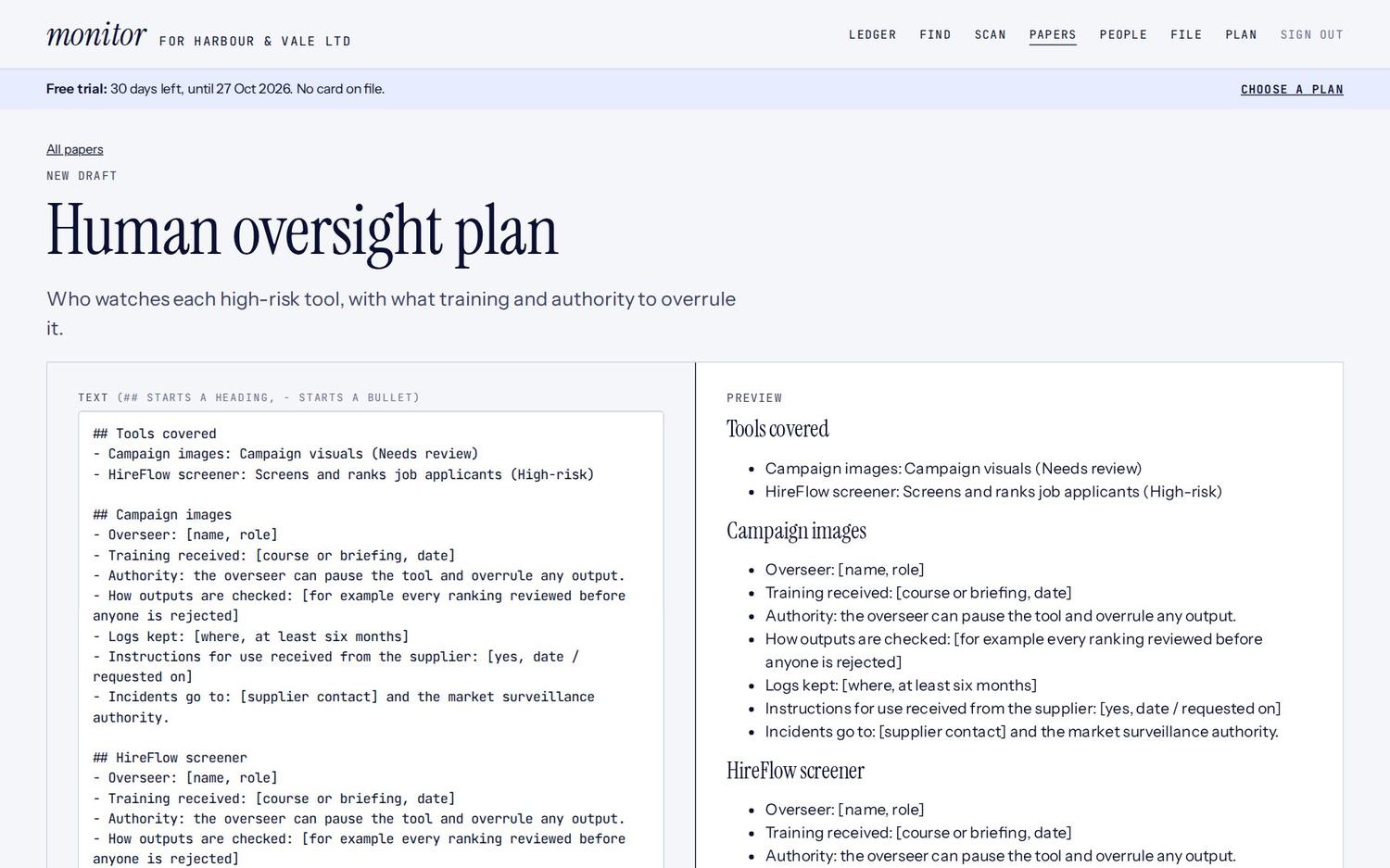
- Click a paper. It opens with a draft filled in from your ledger.
- Edit the text. A line starting with
##becomes a heading, a line starting with-becomes a bullet. Replace anything in [square brackets] with your own details. Preview shows how it will look. - Click Save draft as often as you like.
- When it is right, an approver or the owner clicks Approve as followed by their name. Members can prepare a paper but cannot approve it.
- Once approved, use Print to print it or save it as a PDF.

Editing an approved paper starts a new version. The approved version stays in the record until the new one is approved.
Start again from the ledger replaces the text with a fresh draft, useful after you add or re-sort tools.
Redraft with Claude appears if it is switched on for your account. It improves the wording of your draft, keeps your placeholders and adds no new facts. Read the result carefully before you save.
Staff sign the AI use policy
When the AI use policy is approved, the staff survey link from the Find page also shows the policy. Staff read it and sign with their name and work e-mail. The policy page shows who has signed, and approving the policy marks the company's AI literacy duty as covered.
The evidence file
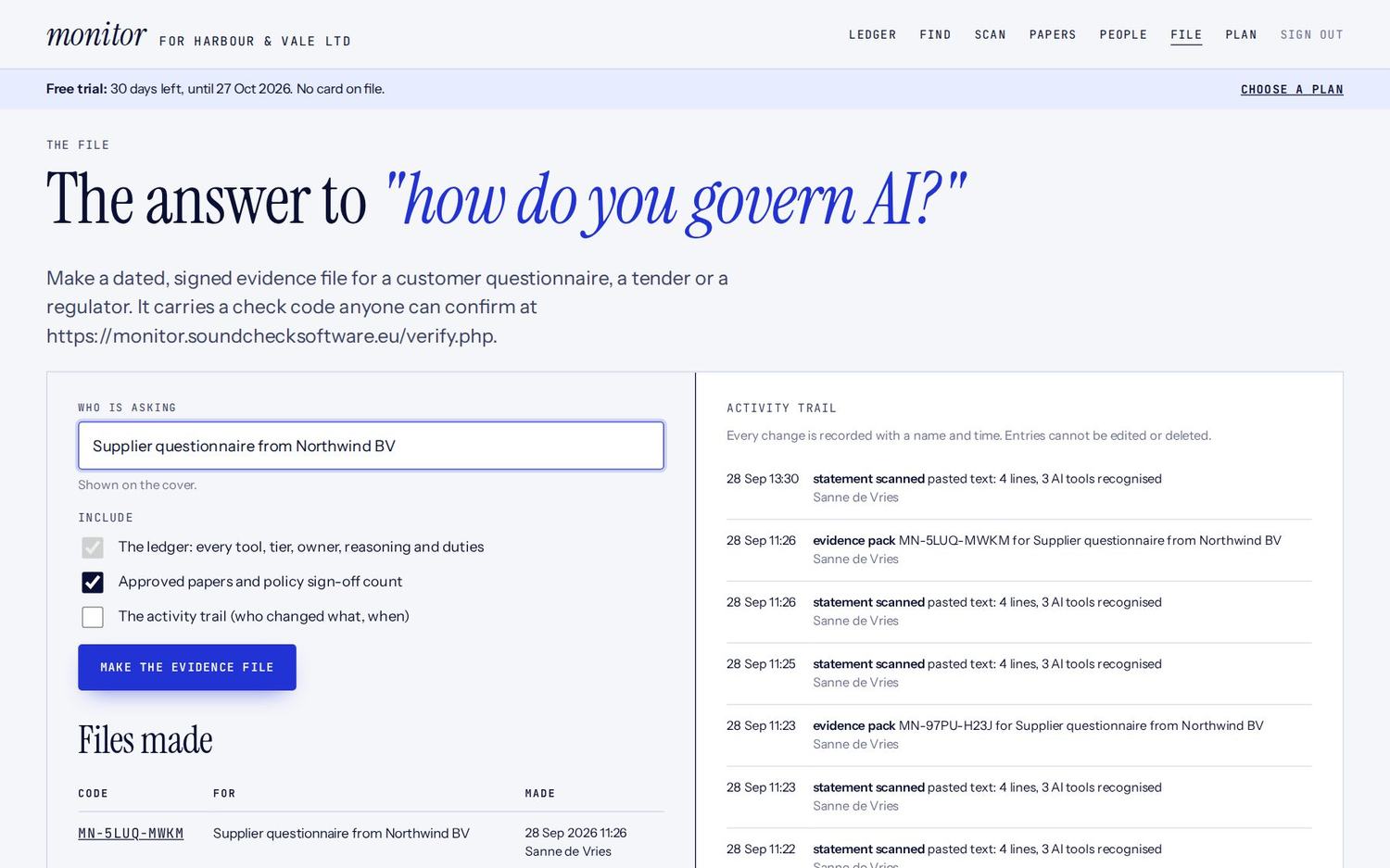
The evidence file answers "how do you govern AI?" in one document, for a customer questionnaire, a tender or a regulator. Each file is dated, signed by you, and carries a check code anyone can confirm. Open File in the menu.
Make an evidence file
- Under Who is asking, type who the file is for, for example "Supplier questionnaire from Northwind BV".
- Under Include, choose what goes in: the ledger with every tool, tier, owner, reasoning and duties (always included), approved papers with the number of staff who signed the policy, and the activity trail.
- Click Make the evidence file.
- On the file, click Save as PDF or print to make a PDF, or Download the data for the raw data.

What is in the file
- The cover: your registered company name, who prepared it and when, your adviser if you have one, the check code and a fingerprint of the contents.
- 01 The ledger: every AI tool with its tier, role and owner. If you used Monitor Scan, a note says how many computers and logs were checked.
- 02 Reasoning and duties: why each tool sits in its tier, and the status of every duty.
- 03 Approved papers, if you included them.
- The activity trail, if you included it.

The file is a fixed snapshot. Later changes to the ledger do not change it; make a new file instead. Every file you made is listed under Files made.
How someone checks your file

The activity trail
The lower part of the File page shows every change: tools added, sorted and removed, duties updated, papers approved, scans received and files made, each with a name and a time. Entries cannot be edited or deleted.
People and roles
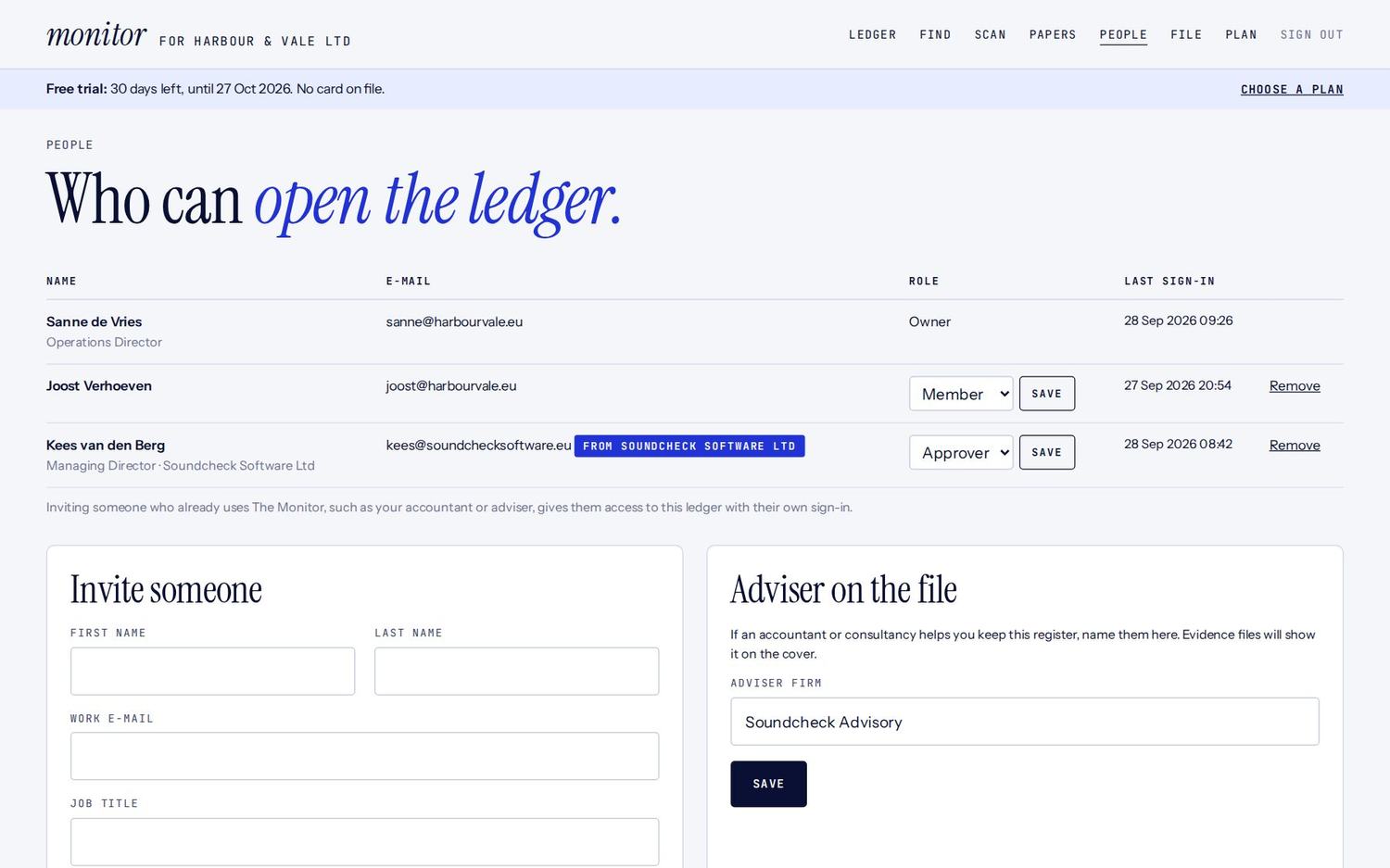
Everyone who works on the register gets their own sign-in, so the activity trail always shows who did what. Open People in the menu. Only the owner can invite, change or remove people.
The three roles
| Role | Can do |
|---|---|
| Member | See the ledger, add and sort tools, update duties, prepare papers, run scans |
| Approver | Everything a member can, and approve papers |
| Owner | Everything an approver can, and manage people, the plan, payments and the scan key |
Invite a colleague
- Under Invite someone, enter their first and last name, work e-mail and job title.
- Choose a Role.
- Click Send invitation. They get an e-mail with a link that works for seven days.
- They click the link, choose a password and click Open the ledger.
If the link has expired, send a new invitation. Your plan sets how many users you can have; the People page shows the number.
Change or remove someone
In the list, pick a new role for a person, or click Remove. Their past actions stay in the activity trail.
Working with an accountant or adviser
- Give your adviser access. Invite them like a colleague. If they already use The Monitor for other clients, they get access to your ledger with their own sign-in and switch between companies at the top of the page.
- Adviser on the file. Under Adviser on the file, type the name of the firm that helps you. Your evidence files then show it on the cover.
For advisers with several clients. The company name at the top left becomes a drop-down list. Choose a client to work on its ledger. Everything you do is recorded under that client, with your name.
Change your password. At the bottom of the People page, under Your password, enter your current password and a new one, then click Change password.
Plan and payment
Your trial runs 30 days with no card. When it ends, the ledger turns read-only until you choose a plan: you can still see everything, and nothing is deleted. Open Plan in the menu. Only the owner can choose or change the plan.
Choose a plan and pay
- At the top, choose Monthly or Yearly. Yearly costs less.
- Each plan shows its price excluding VAT, and what it includes.
- Click Choose and the plan name, or Renew for your current plan.

- Pay securely with our payment provider, Aldgate Pay. We never see or store your card details.
- Back in The Monitor, the Plan page says your payment is being confirmed. The new paid-until date appears within a minute.
If you pay during your trial, the paid period starts when the trial ends, so you lose no free days. If a plan shows Ask us to set it up, click it to e-mail us and we will arrange it.
Vouchers
Have a voucher code? Enter it under Voucher and click Apply. You can also enter it when you sign up. A voucher can give a discount, extra free time or a free plan, and the Plan page shows what yours gives and until when.

When a payment is due
If your paid period ends, a bar at the top of every page says a payment is due. Renew within the grace period shown to keep editing. After that the ledger turns read-only until you pay. Nothing is lost.
Ask an adviser
For high-risk tools, or anything marked Needs review, you can ask a qualified adviser to check your decisions for a fixed fee.
- Under Ask an adviser, write what you would like checked.
- Click Request a review.
- An adviser contacts you within two working days. Your high-risk and to-review tools are sent with the request.
Your payments
The Payments table lists every payment with its date, plan, amount, the date it covers until, and a reference for your bookkeeping.
Questions and problems
| Problem | What to do |
|---|---|
| The e-mail code does not arrive | Wait a minute and check spam. Click Send a new code. Ask IT to allow e-mail from monitor@soundchecksoftware.eu. |
| "That code has expired" | Codes work for 10 minutes. Ask for a new one. |
| "A person is checking your details" | Your sign-up needs a quick look, usually within one working day. You get an e-mail when it is ready. |
| I cannot change anything | The ledger is read-only because the trial ended or a payment lapsed. The owner chooses a plan under Plan. |
| I cannot approve a paper | Only approvers and the owner can. Ask the owner to change your role under People. |
| I cannot invite people | Only the owner can manage people. |
| A tool will not add | Your plan's tool limit is reached. Take unused tools off the ledger, or choose a bigger plan. |
| Windows blocks the scan program | Click More info, then Run anyway. Or use the PowerShell line from the Scan page. |
| "This scan key is not valid" | The key was replaced. Download the program or copy the command again from the Scan page. |
| The scan found too little | Run it as administrator (Windows) or with sudo (Mac and Linux) to include every user. Close the browser if its history was skipped. |
| A scan result is not AI | In Possible AI, click Not AI. For a known tool, simply do not add it to the ledger. |
| The survey link was shared too widely | On the Find page, click Make a new link. |
Good to know
- Is this legal advice? No. The Monitor records your own decisions and the rule each one relied on. For anything high-risk, use Ask an adviser.
- Does AI decide the tier? No. A fixed rules catalogue decides it and cites the article every time.
- Where is our data? On servers in the EU, run by Soundcheck Software. Statement files and network logs are read and not stored.
- What does Monitor Scan send? Only the AI tools it finds and where it found them, never your other apps, other websites or file contents.
- Can we use it for a UK company? Yes, sign up with your Companies House number.